How to Register for a Customer Portal Account
The Brinks Home™ Customer Portal is your one-stop shop for managing your account and your security system. Register once, then sign in any time.
In the Customer Portal, You Can
- View your bill
- Make a payment
- Set up automatic payments with AutoPay
- Update your account information, including login information and emergency contacts
- Get your insurance certificate
- Test your system
Before You Start
- The email address you want to use
- Your phone, in case you're asked to verify your phone number
- Your monitored address or customer number, in case we can't find your account by email or phone
Register in 7 Steps
Open the Customer Portal sign-up page. It opens in a new browser window.
Click Register, or click Sign up now under the sign-in fields. Enter your email to get a verification code.
Watch: choosing Register and entering your email Check your email for the verification code, then copy it into the registration page.
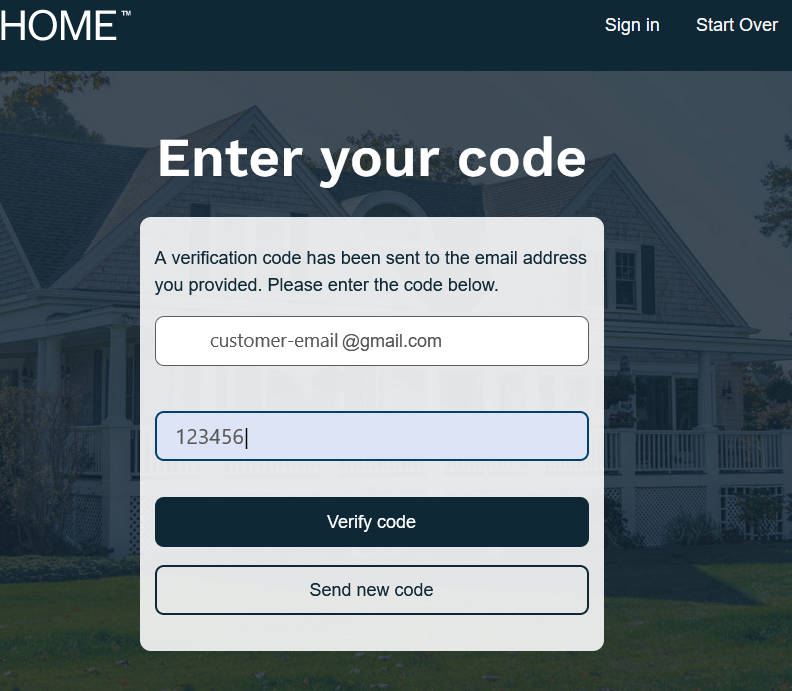
Enter the code from your email (tap to see the full screen) Don't see the email? The email comes from "Customer Web Requests" with the subject "Brinkshome Enrollment". Depending on your email settings, it may go to your junk or spam folder.
You'll see a message that your email address is verified. Click Continue.
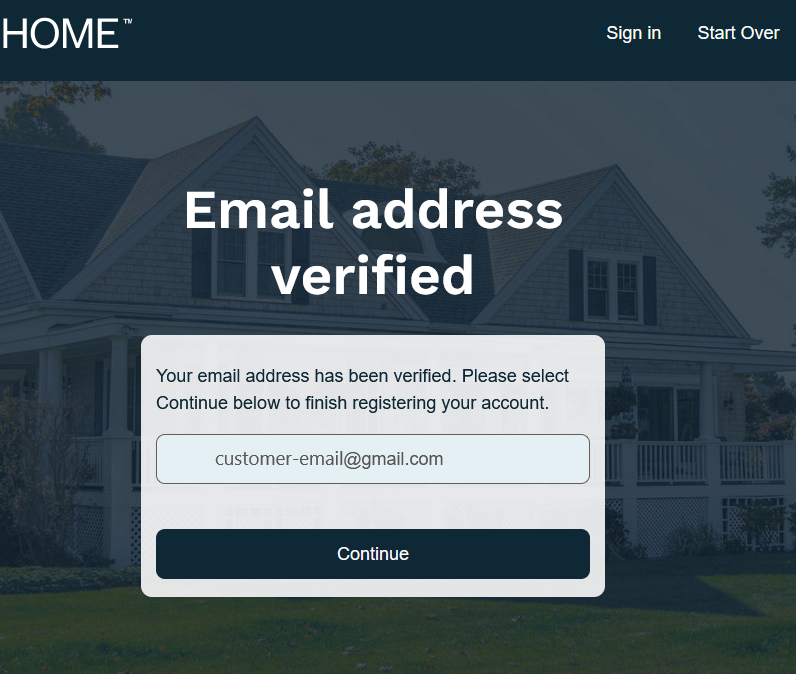
Your email is verified. Click Continue. (tap to see the full screen) If you're asked for more verification, enter your phone number and choose a text message or a phone call to get a code.
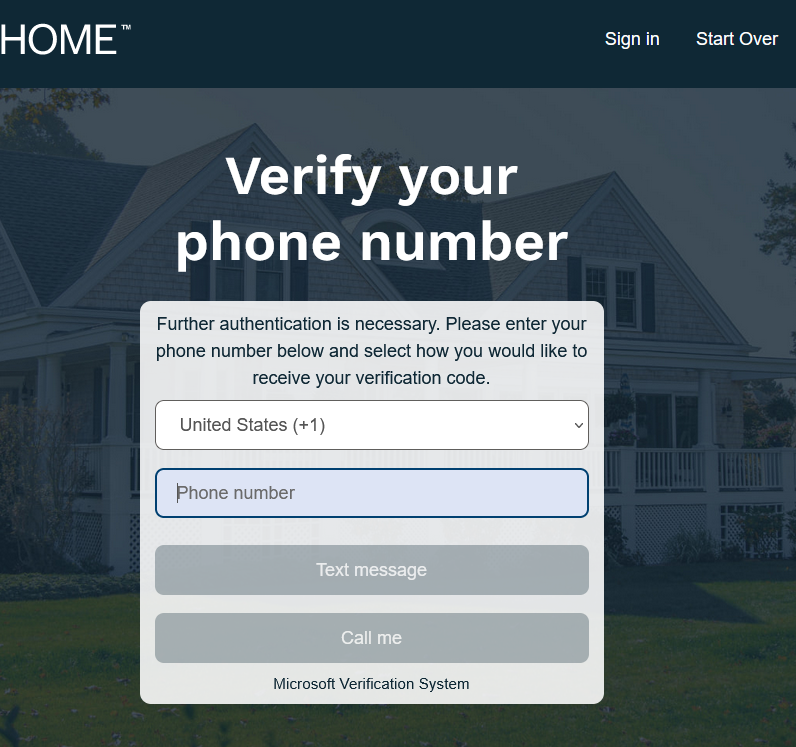
Choose Text message or Call me (tap to see the full screen) Enter the verification code you received.
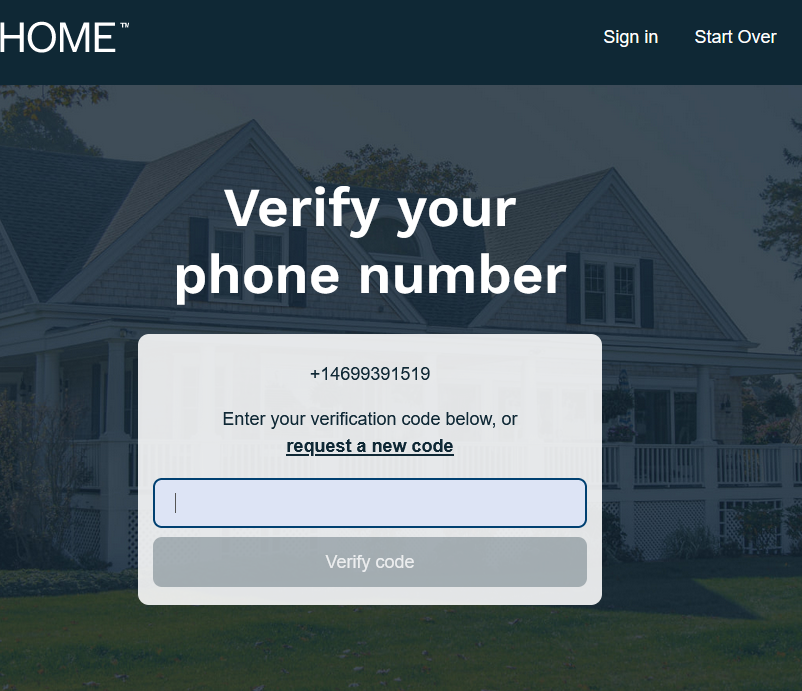
Enter the code you received (tap to see the full screen) If we can't find your Brinks Home monitoring services with your email or phone number, you'll be asked for your monitored address or customer number. Follow the prompts to finish registering.
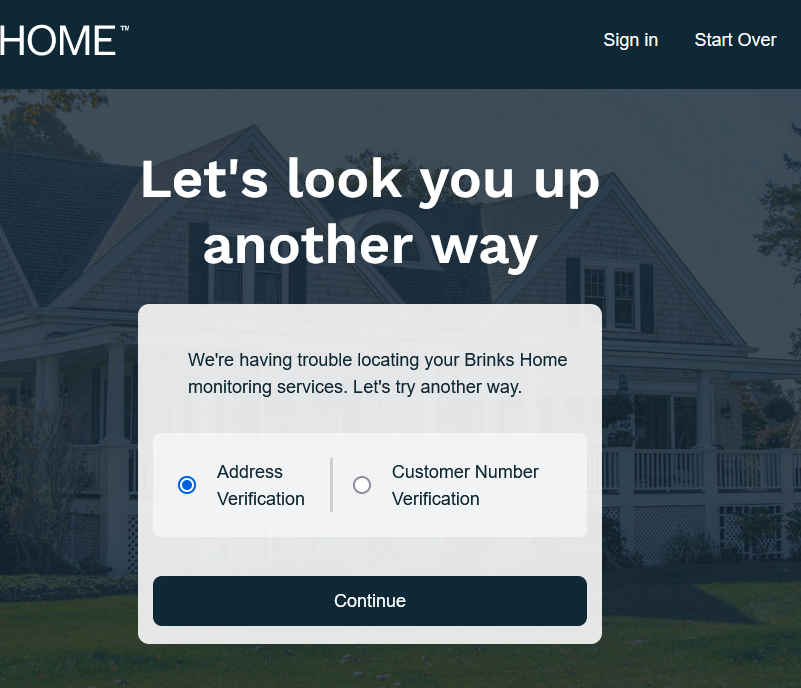
Choose address or customer number (tap to see the full screen)





Password not accepted? If your password isn't accepted, check that it has:
- A lowercase letter
- An uppercase letter
- A number or a special character ($@!%?&)
- At least 8 characters
Stuck? Can't finish registering? From your mobile phone, text 469.513.8685 for help.
Still Need Help?
Our support team can help you register or sign in.
Contact Brinks Home™ Support