How to Update Your Payment Method
Change the card or bank account used for AutoPay, or manage the saved payment methods you use for one-time payments.
What do you want to change?
Saved payment methods
The cards and accounts you use to make a one-time payment.
AutoPay, in the Brinks Home App
Log in to the Brinks Home App.
Tap the 3 lines in the top left corner to open the menu, then tap My Account.
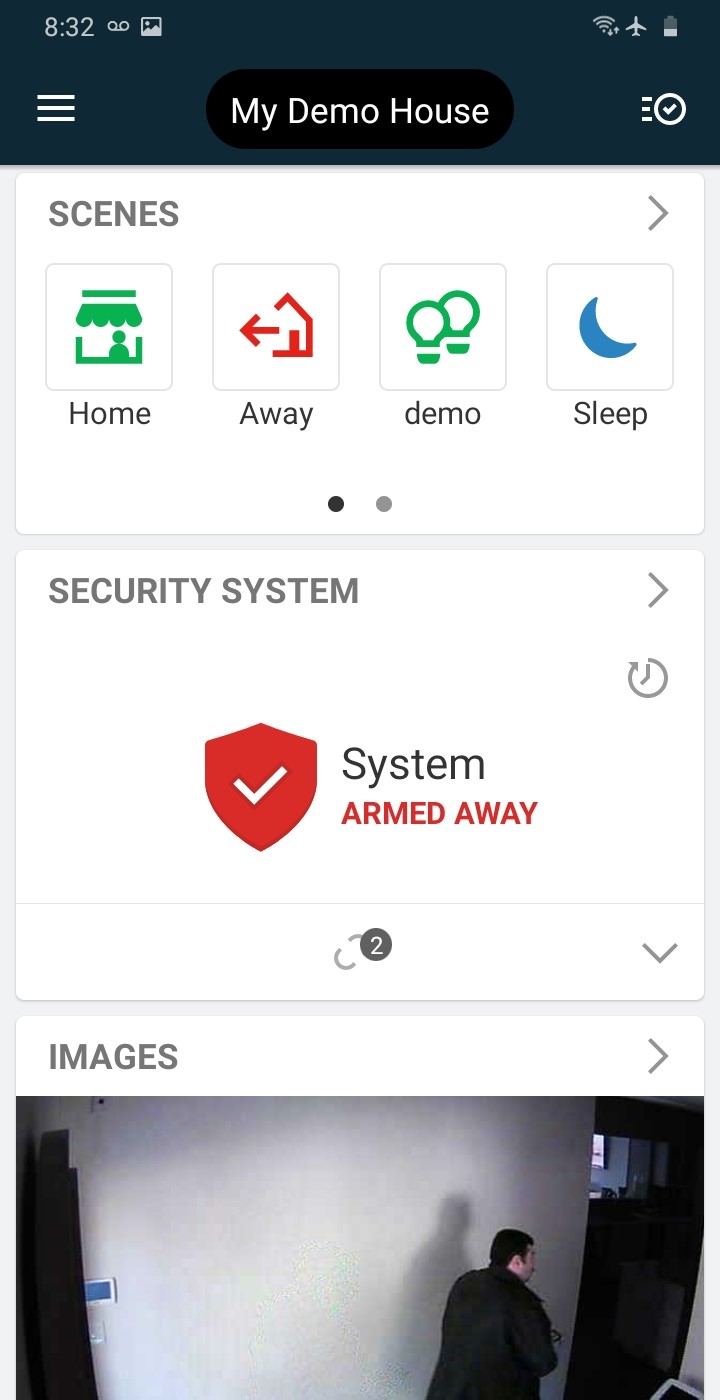
Tap the 3 lines 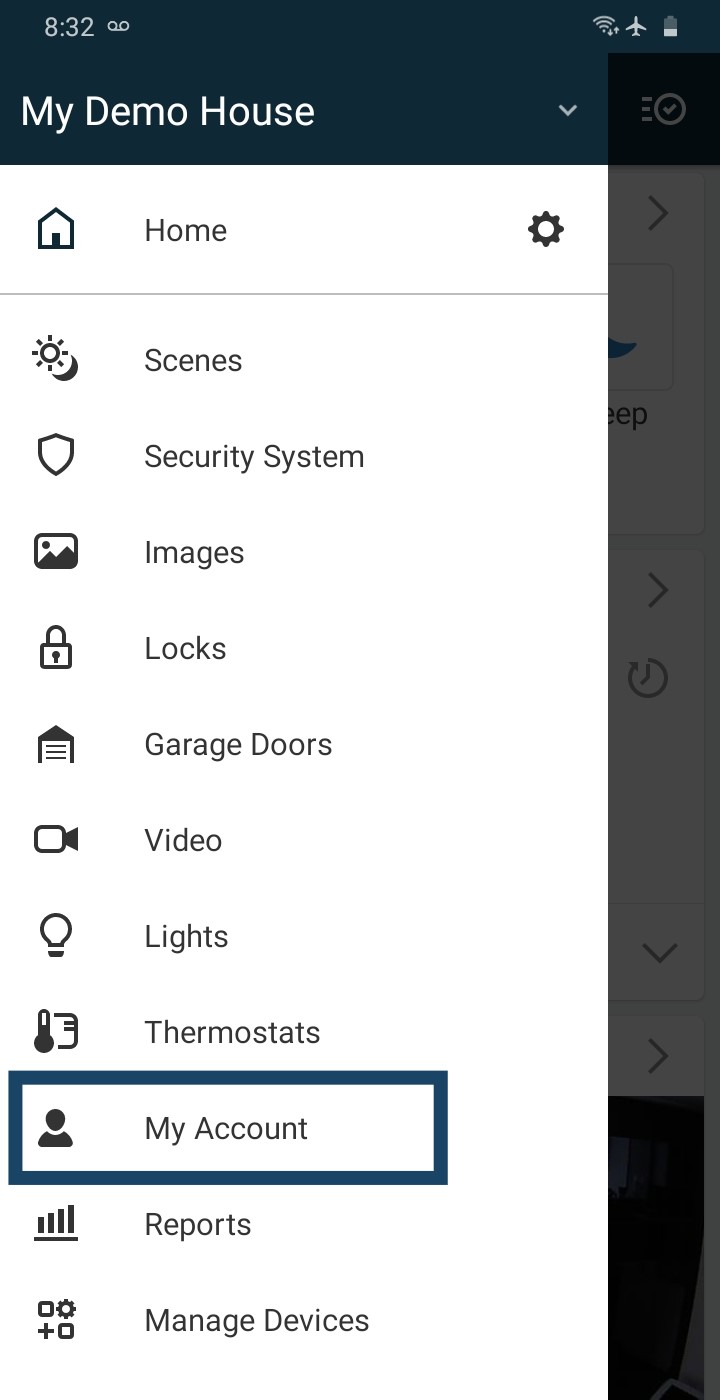
Tap My Account Swipe up to see all the quick links, then tap AutoPay Settings.
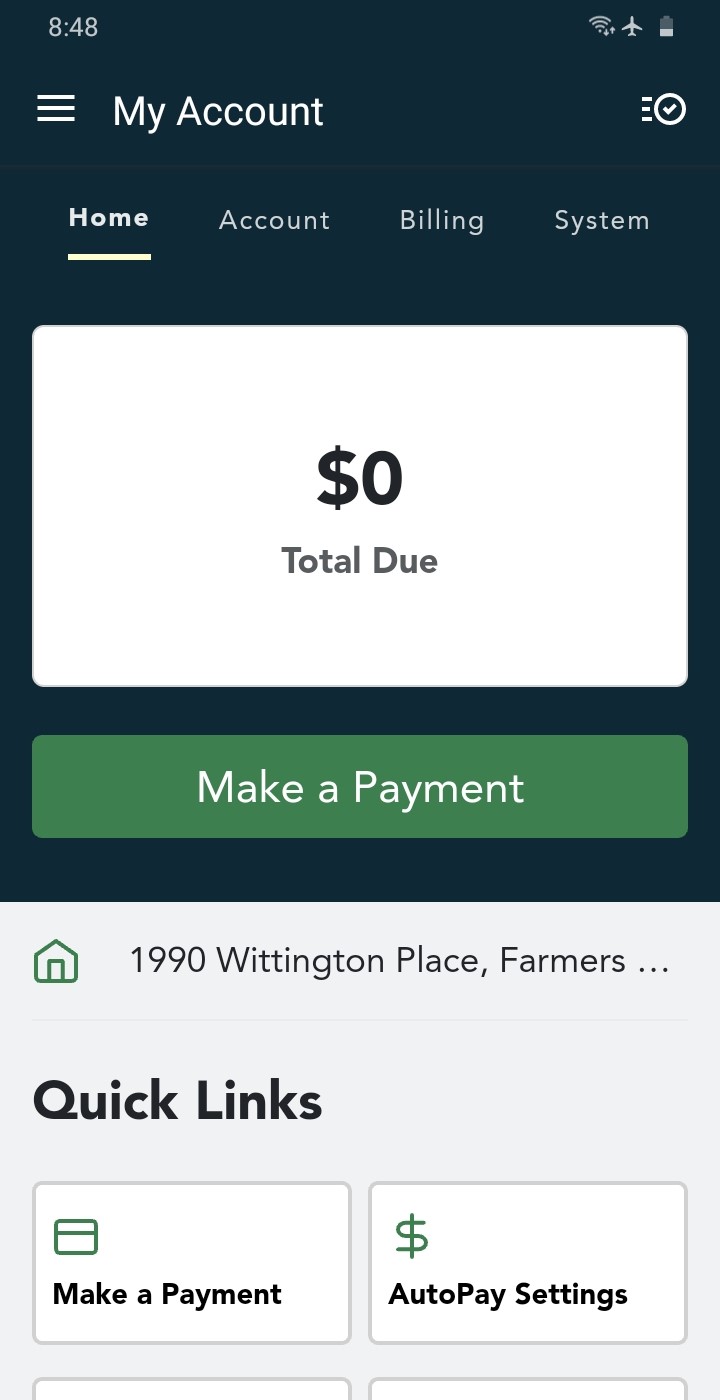
My Account 
Tap AutoPay Settings Not enrolled yet? You'll see AutoPay Enrollment. Check the box to agree to the Terms of Service, then tap Enroll in AutoPay. Already enrolled? You can change your draft date, or enter new account information to replace what's on file.

Agree, then Enroll in AutoPay Enter a nickname for the account that you'll recognize later, choose the Payment Type (bank account or credit card), then tap Next.

Nickname and payment type For a credit card, choose your card type. Enter your payment information, then tap Next.

Choose your card type 
Enter your card details


Want to cancel AutoPay? To cancel or unenroll from AutoPay, contact us. From your mobile phone, text a Support Representative any time at 469.513.8685.
Saved Payment Methods, in the Brinks Home App
Log in to the Brinks Home App.
Tap the 3 lines in the top left corner to open the menu, then tap My Account.
Tap the 3 lines Tap My Account Tap Billing in the tabs at the top of the screen.

The Billing tab Swipe up and tap Saved Payment Methods.

Tap Saved Payment Methods From here you can:
• Add a payment method: select New (in the app, the + or New Payment Method).
• Delete one: tap the trash can.
• Pay with one: tap its circle, then tap Next.
Your saved payment methods


AutoPay, in the Customer Portal
Log in to the Brinks Home™ Customer Portal.
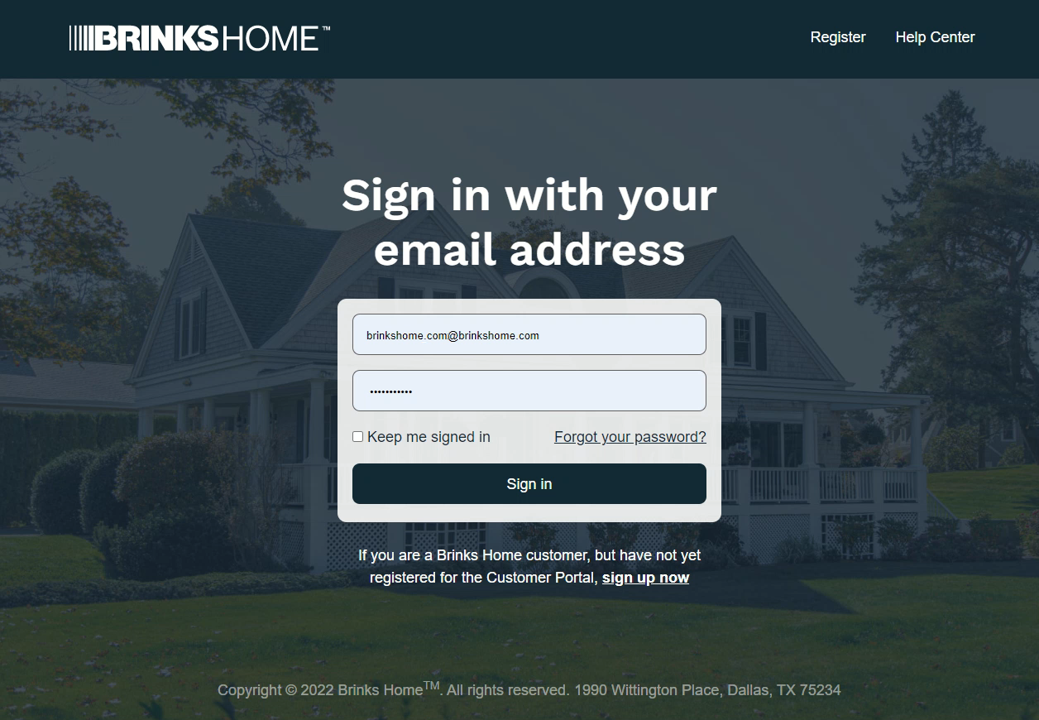
The sign-in page On the home page, click AutoPay Settings in Quick Links.

AutoPay Settings in Quick Links (tap to enlarge) On another page? Click Billing at the top right, then AutoPay.

Billing, then AutoPay (tap to enlarge) Here you can change your Draft Day, the day of the month your account on file is charged. To update the card or account on file, click Change Payment Method.

AutoPay Settings (tap to enlarge) Follow the prompts to add a new bank account or credit card.

Choose bank account or credit card (tap to enlarge)


Want to cancel AutoPay? To cancel or unenroll from AutoPay, contact us. From your mobile phone, text a Support Representative any time at 469.513.8685.
Saved Payment Methods, in the Customer Portal
Log in to the Brinks Home™ Customer Portal. If you are already logged in, go straight to the Make a Payment page, where you can manage your saved cards and accounts.
The sign-in page Click Billing at the top right of the page.

Click Billing (tap to enlarge) Click Saved Payment Methods.

Click Saved Payment Methods (tap to enlarge) From here you can:
• Add a payment method: click New.
• Delete one: click Remove.
• Pay with one: click Use this method.
Your saved payment methods (tap to enlarge)


Need more help? From your mobile phone, text a Support Representative any time at 469.513.8685.
Still Need Help?
Our support team can help with AutoPay and your saved payment methods.
Contact Brinks Home™ Support